
 Resources
 Campus Life
 Just for you


 My Canyons
  Canvas
Instructional Continuity
When Canvas or other college systems are unavailable, your first step should be to communicate with students and inform them of what to expect. The checklist below outlines recommended steps for communicating with students in the event of a Canvas outage:
- Send updates using college email
- Clearly explain next steps and temporary expectations
- Share where materials and assignments will be accessed
- Reassure students that flexibility will be provided
You may choose to use the sample message below to share information about an outage with your students.
Sample Message to Students
Dear Students,Canvas is currently experiencing an outage that may impact access to course materials and activities. During this time, please monitor your COC email for course updates and instructions. Our class will temporarily use [email, Zoom, etc.] for communication and course continuity until Canvas access is restored.
Thank you for your patience and flexibility.
Preparing for Outages and Exporting Canvas Content
To prepare for future Canvas outages you may:- Save copies of course materials
- Maintain updated student email communication practices
- Prepare backup Zoom links
- Include contingency expectations in syllabus
Instructors are encouraged to keep personal copies of course material for record keeping and continuity purposes. There are several options for exporting and retaining your Canvas course materials outside the platform. Follow step-by-step guidance below for downloading your course content for storage in OneDrive or locally on your device.
You can export scores from the Gradebook and download them to your computer as a CSV file. Once exported, you can save the file to your computer or to your OneDrive account, where you can view and edit the file with Excel.
Open Grades
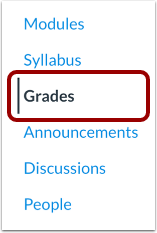
In Course Navigation, click the Grades link.
Export Scores
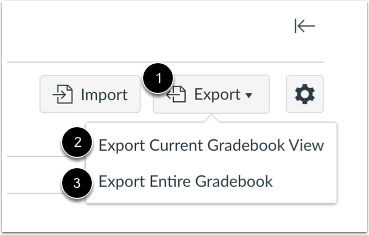
Click the Export button [1], then click the Export Current Gradebook View link [2].
When the export is completed, Canvas downloads the CSV file automatically to your computer.
View Exported Scores
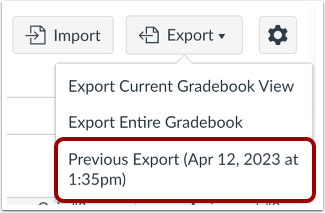
If you made changes to the Gradebook after exporting a file and want to export a new file, click the Export link again.
Notes:
- Gradebook export files include the date and time of the download to differentiate between multiple exports. The export filename format is YYYY-MM-DDTHHMM, followed by the course name.
- Gradebook export files automatically save to your user files in an Unfiled folder.
You may export and save your full Canvas course to be re-imported back into Canvas at a later time (it is saved as an ISMCC file). Once you have downloaded the file, you may change it to a zip file so the content can be viewed outside of Canvas. The file will be large so it is recommended to save it to your OneDrive account rather than saving locally to your device. See instructions at the bottom of this page for how to save files to OneDrive.
How to export a Canvas Course:
Open Settings
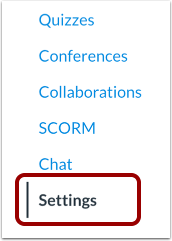
In Course Navigation, click the Settings link.
Export Course
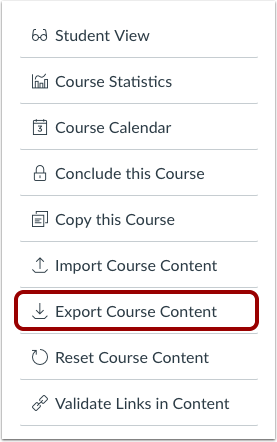
Click the Export Course Content link.
Select Export Type
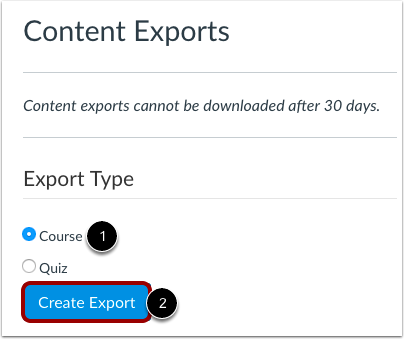
In the Export Type heading, click the Course radio button [1]. Click the Create Export button [2].
Note: If you have previously exported the course, Canvas will display prior exports under the Content Exports heading.
View Export Process
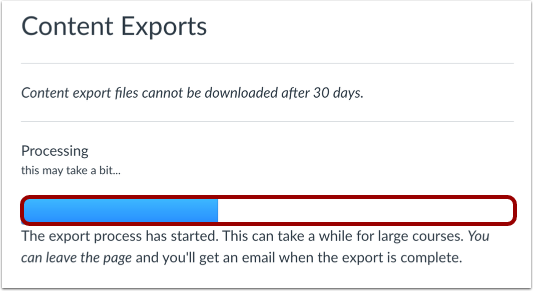
View the progress bar. Exporting a course in Canvas may take a few minutes, depending on its size. You will receive an email when the export is complete.
Download New Export
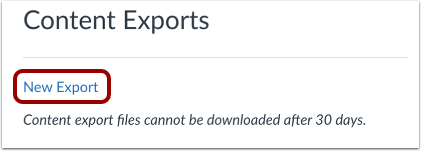
When your download is ready, click the New Export link.
You can now save your export to your OneDrive account following the steps at the bottom of this page.
If you have videos stored in your Canvas Studio library, you may download them and save them to your OneDrive account as a backup. You may also choose to upload the saved videos to YouTube to more easily share them with students outside of Canvas if needed. To download your Studio videos, follow these steps:
Open video from your Studio Library
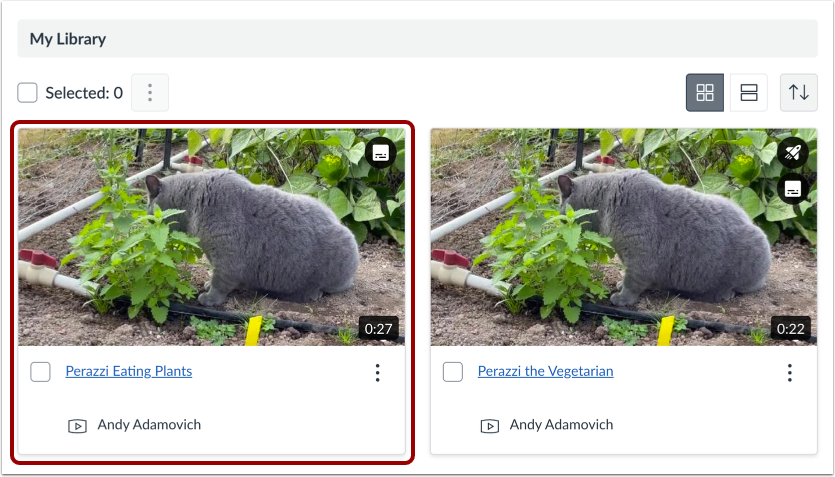
Hover over the media and click the View link.
Download Media or Transcript File
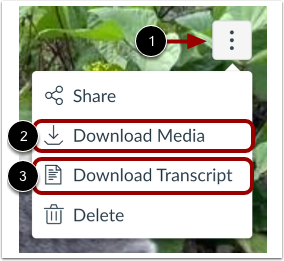
Click the More Options icon [1].
To download the media file, click the Download Media link [2].
To download the media transcript file, click the Download Transcript link [3].
Notes:
- If the Download Media link does not appear in the list, the media is copyright protected and can not be downloaded.
- If the Download Transcript link does not appear, the media does not include captioning.
You can now save your export to your OneDrive account following the steps at the bottom of this page.
Saving Files in OneDrive
Once you have exported any content you wish to keep, you may save them in your COC OneDrive account with the following steps:
- Log into OneDrive with your COC credentials by visiting https://onedrive.live.com/
- In OneDrive, click create or upload in the upper left
-
- Select the file you want to upload and click open.
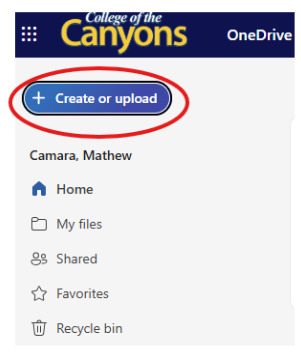
Done! Now you can access your files any time by clicking "My Files" in your OneDrive account.