
 Resources
 Campus Life
 Just for you


 My Canyons
  Canvas
Connecting to a Shared Mailbox
Using Outlook:
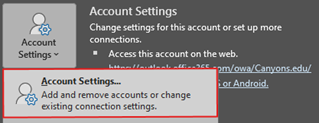
- In Outlook, click 'File', 'Account Settings', 'Account Settings'
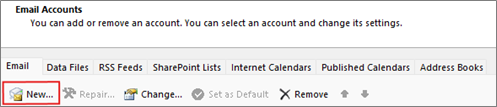
- On the Email tab, Click 'New…'
- Enter the Shared Mailbox's email address and click 'Connect'.
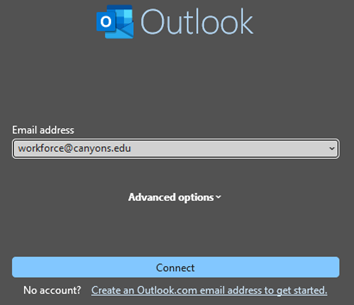
- Sign in with your CanyonsID (STAFF\last_f) and password. Provide MFA as required.
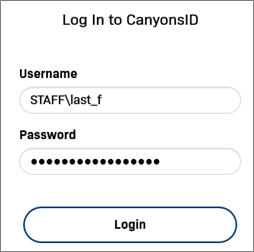
- Click 'Login'.
- You should see a message reporting “Account successfully added” and that you need to restart Outlook for the changes to take effect.
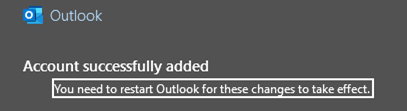
- Click 'Done'.
- Click 'Close' on the Account Settings page.
- Note: you may not see the newly added account on the 'Email' tab (until you restart Outlook).
- Note: you may not see the newly added account on the 'Email' tab (until you restart Outlook).
- Close and open Outlook.
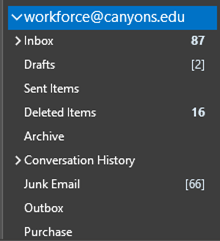
- You should now see your shared mailbox in Outlook.
Using Outlook on the Web:
- Login to https://outlook.cloud.microsoft/mail/ with your College email address.
- Click on the ‘my account’ icon (top right of page).
- Select ‘Open another mailbox’.
- Enter the shared email address and click Open.